Since the vast majority of articles, tutorials, and comments about Git are written by and for programmers (I fit that profile), I thought it would be interesting to translate this text by designer Mindy Wagner. The post gives a simple overview of Git. It's great for introducing designers and even developers who don't yet use version control systems. Escape the chaos—use Git! Here's the translation:
Unless you have a one-person web shop with no team to collaborate with, you’re experiencing the frustration that comes with sharing files. No matter how hard you try, when several people work on a single project without a version control system, things become chaotic.
If you work with developers to create and implement websites, bringing front-end templates together with back-end functionality can feel like a frightening black hole.
Problems such as overwritten files, missing files, and the recurring idea of wanting to “get rid of the previous version”. And once back-end functionality has been added to your templates, you’re afraid to touch them and break something a programmer spent a long time getting ready.
Besides, even if you have a shared repository and everyone gets their files from it, there’s still a chance that at least one team member will forget to get the latest updates and is about to destroy things by overwriting other people’s work with their newest additions.
In this article, I’ll give you a quick overview of GIT, an excellent version control system.
Version control—a plain-English explanation
Version control (also known as revision control or source control) is a great way to solve the file-sharing problem.
The basic idea is this: there’s a central repository for all the project’s files. Team members get the files, modify them, and then send them back (using the commit command). The version control system (VCS) automatically detects who changed the files, when they were changed, and what was modified or added.
It also asks you to write a short note about your change so everyone can know what you did and why. That way, every file has a revision history, which makes it easy to return to an earlier version of any file if something goes wrong.
A good VCS also lets you merge changes to the same file. If you and someone else work on the same file locally at the same time, when you move the files back to the central repository the system will merge both sets of changes to create a new, up-to-date file that reflects both people’s modifications. If a conflict arises during the merge, you’ll be shown what needs to be resolved.
You are probably using a very crude version control system to keep track of your files right now. If you’re a designer, it looks something like this:
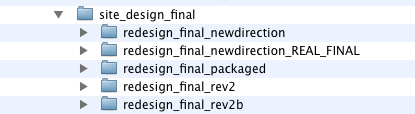
Designer version control — FAIL
This works well enough for PSDs and other binary files, since they aren’t really suitable for a VCS. But there’s a much better way to do this when you’re managing a website’s source code.
Benefits of using a version control system include:
- Files can’t be overwritten.
- There’s a shared repository that stores all the latest files.
- People can work on the same files simultaneously without conflict.
- It lets you return to an older version of a file or project if necessary.
- It makes developers very happy.
Even if you don’t work on a team, version control can be a lifesaver. Backing up files is one of the simplest things you can do to save yourself from losing work or having to start over.
The idea of a VCS can seem intimidating at first, especially since most of the documentation is written by and for developers. But once you make the change and incorporate it into your work, you’ll see that it’s not as difficult as it seems.
Meet GIT
OK, now you can see why a version control system is indispensable for your development team. If you do some research, you’ll find several options, including SVN, Mercurial, CVS, Bazaar, and GIT. Any of them could be a good solution for your needs, and I encourage you to do some research before choosing a VCS. In this article, I’ll focus on GIT, which I use every day. It’s a “rising star” that has gained popularity thanks to a big Linux fan, GitHub, and the Rails community.
GIT is an open-source version control system created by Linus Torvalds for Linux development. Linus is a very smart guy; when he focuses on solving a problem, he doesn’t mess around. One of GIT’s biggest differences is that, unlike SVN and CVS, it’s a distributed version control system. This means that each user has a complete copy of the repository’s data stored locally on their machine. Why is that so important? A few reasons:
- Everything is local, so you can work offline.
- There’s no single point of failure. It doesn’t depend on a central server that might crash and burn, taking the only copy of your project’s repository with it.
- Since it doesn’t have to communicate with a central server all the time, operations run much faster.
GIT has a somewhat steeper learning curve than SVN, but it’s worth the effort. Just imagine how impressed your developer friends will be when you tell them you’re using the VCS of the moment: GIT! Seriously, I don’t think the learning curve is that steep. SVN was just as confusing for me at first, and I used to have lots of trouble with it.
Installing GIT isn’t as much fun as playing video games. I was lucky to have a developer willing to help me, but there’s plenty of information online to help you learn. Git can run on a PC, Mac, or Linux, although installation is easier on Linux and OSX than on Windows.
You can download the latest version of GIT here. After downloading the files, try this quick guide to get started with the installation process. For Windows users, this step-by-step visual guide should be useful. Mac users can try this guide on GitHub.
Getting started
Once you’ve installed GIT, you can create your repository. To turn an existing folder into a GIT repository, run these commands in your terminal or Command Prompt window:
cd  caminho/para/projeto
git init
git add .
git commit
What you’re telling GIT to do is:
- Initialize this directory.
- Add all files and subdirectories to the index area (like a waiting room).
- Store all the current changes in the repository (they leave the waiting room and are served).
If you hate the command line, you can do this with Git GUI. It’s not the prettiest thing you’ve ever seen, but it’s there if you need it.
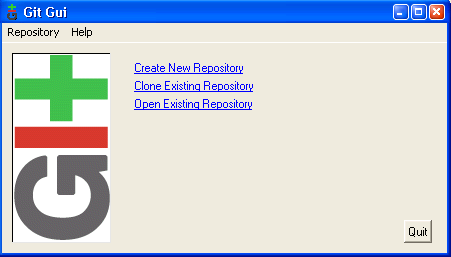
A sample GIT workflow
I’m currently using GIT on a Mac to work on a web application with several web developers. We have one code “master” where we send our files after creating or modifying them, and we all have a complete copy of the repository locally. On a given day, my workflow looks something like this:

- I open Terminal. I start my local MySQL database (so the application we’re building can run locally on my machine).
- Check for the latest changes by running
git pullin Terminal. This gives me all the changes made by the other team members in our master repository. - I open the project in TextMate and make my changes.
- I use the commit command with a message to record the changes I’ve made. For now, this only applies to my local machine. I commit frequently, probably ten or more times a day. It helps me stay on track.
- I send my changes back to the central repository using
git push. Now the other team members can download and see my changes. You should do this at least once a day or after any major addition.
All of these actions can be done easily from the Terminal window, but I’m a visual kind of girl. For that reason, I use GitX, a Git GUI for OSX, to make my commits (add changes to the local repository). I still download files from the server (git pull) and send them back (git push) through Terminal, but GitX makes it easy to organize my commits and keep better track of what I’m doing.
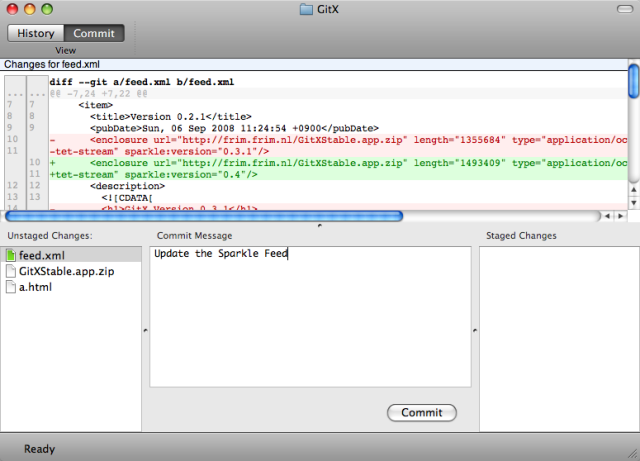
At the top, it shows the changes made to the files. In the lower-left corner is the list of changes waiting to be committed (Unstaged Changes). To commit them, drag one or more files to the “Staged Changes” area on the right, write your message in the “Commit Message” field, and click the Commit button.
If I switch to the tree view, I can see what’s been sent to the repository. If my files weren’t up to date with the files in the master repository, the green and blue tags at the top would be out of sync. GitNub offers a similar interface with a Mac-style look.
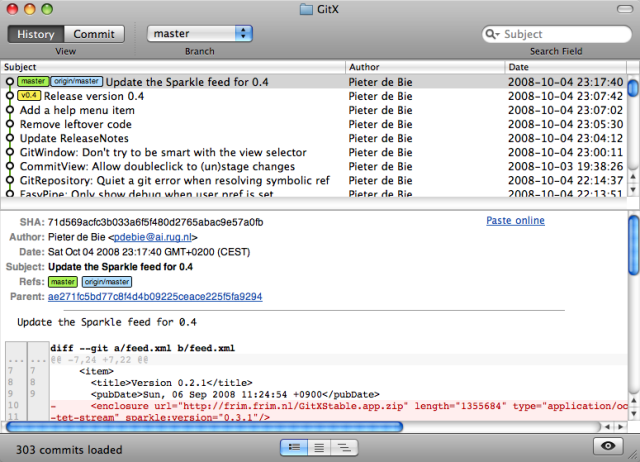
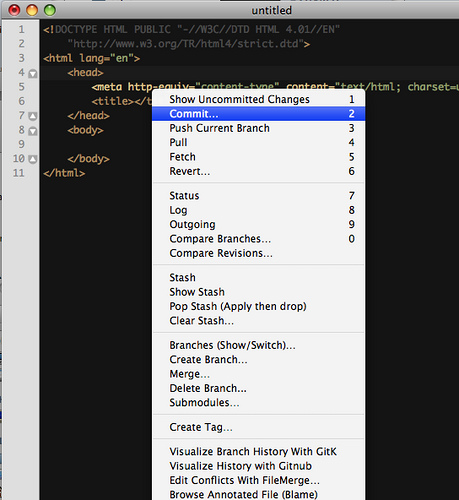
There’s also a great bundle for TextMate (TextMate bundle). With it, you can use push, pull, commit, and other commands without leaving TextMate. It’s extremely efficient.
Learn more
GIT Cheat Sheet
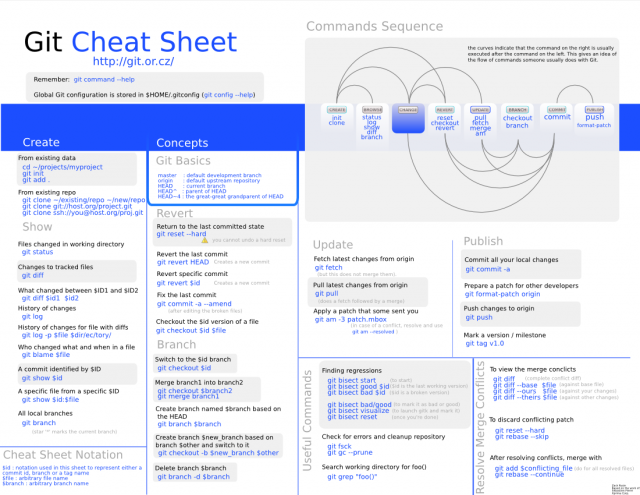 Above: Zack Rusin’s Git Cheat Sheet